Corrections Reference
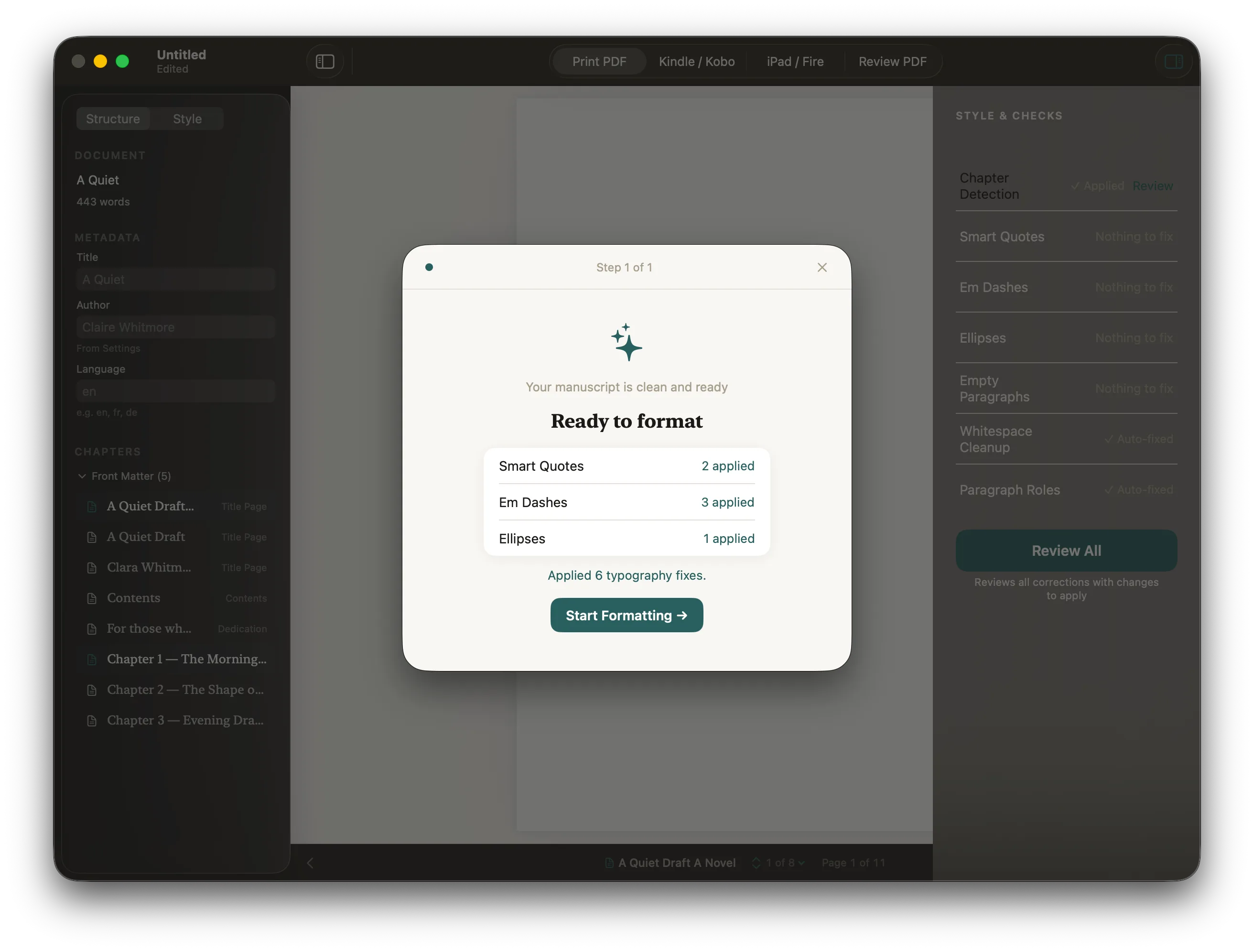
Corrections fix common manuscript issues automatically. Unlike checks, which only flag problems, corrections make changes to your working document.
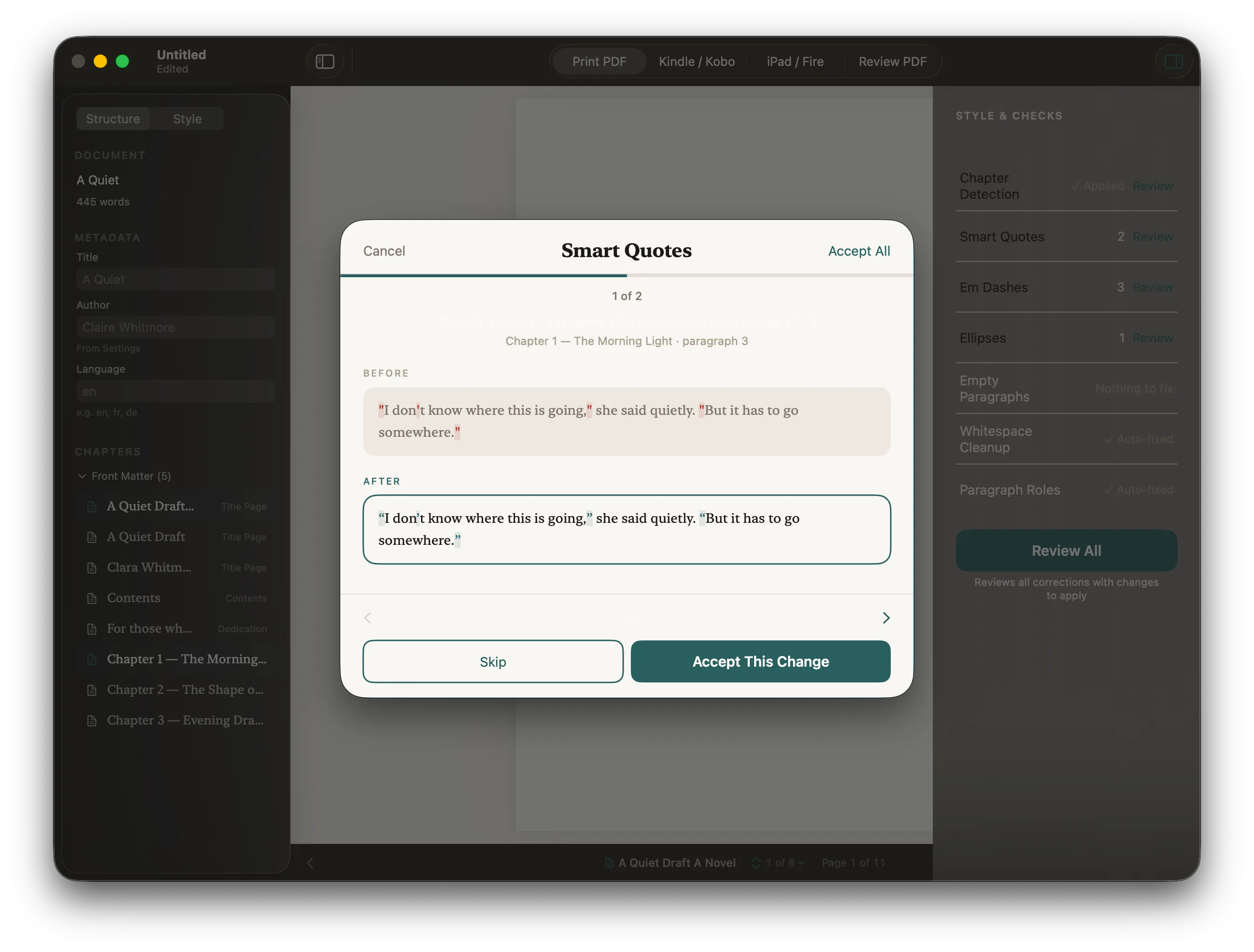
Every correction uses a diff view that shows you exactly what will change before anything is applied. You can accept or skip each change individually, accept all at once, or cancel without applying anything.
Every correction can be undone with ⌘Z.
Your original .docx file is never modified. Corrections update Stet's working copy of your manuscript.
Reviewing a correction
Click Review next to any correction in the Style & Checks panel. The diff view opens showing:
- Chapter and paragraph location: where in the manuscript this change appears
- Before: the original text, with removed content highlighted in red
- After: the corrected text, with added content highlighted in teal
Use the ‹ › arrows or keyboard shortcuts to move between changes:
| Key | Action |
|---|---|
→ or Return |
Accept and advance |
← |
Go back to previous |
Space |
Skip and advance |
Escape |
Close: applies accepted changes, skips the rest |
The progress bar at the top shows your position through all instances.
Review-required corrections
These corrections involve structural decisions that Stet can't make automatically. You always review them in a wizard before anything is applied.
Paragraph styles
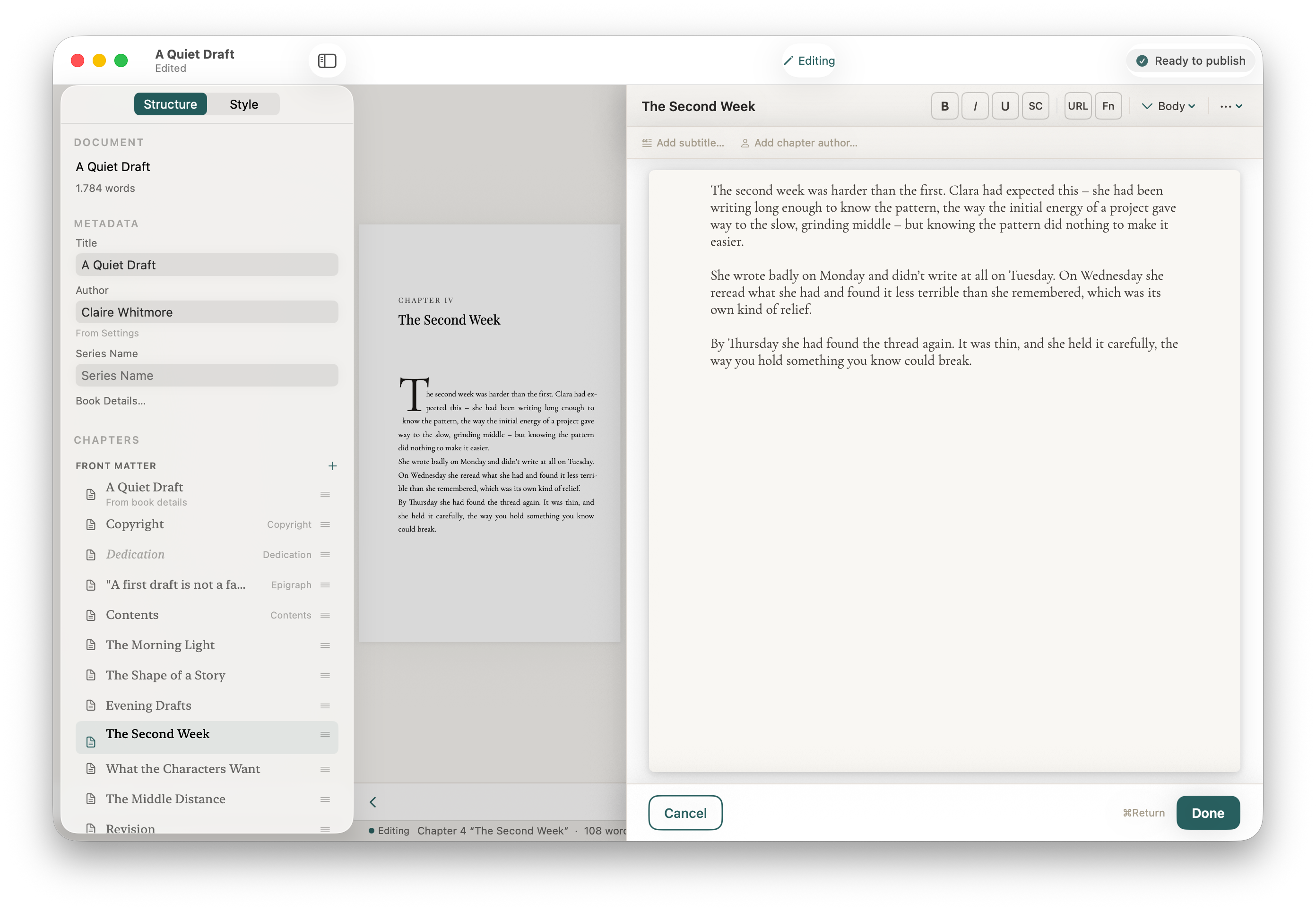
The chapter editor gives each paragraph a style — Body, Verse, Block Quote, Epigraph, Attribution, Letter / Dialogue, Centred Text, or Caption. Stet applies the right style in print and ebook output automatically.
Double-click any page in the preview to open the editor. Use the style picker in the toolbar to change a paragraph's role.
Chapter Detection
ID: correction.chapter-detection
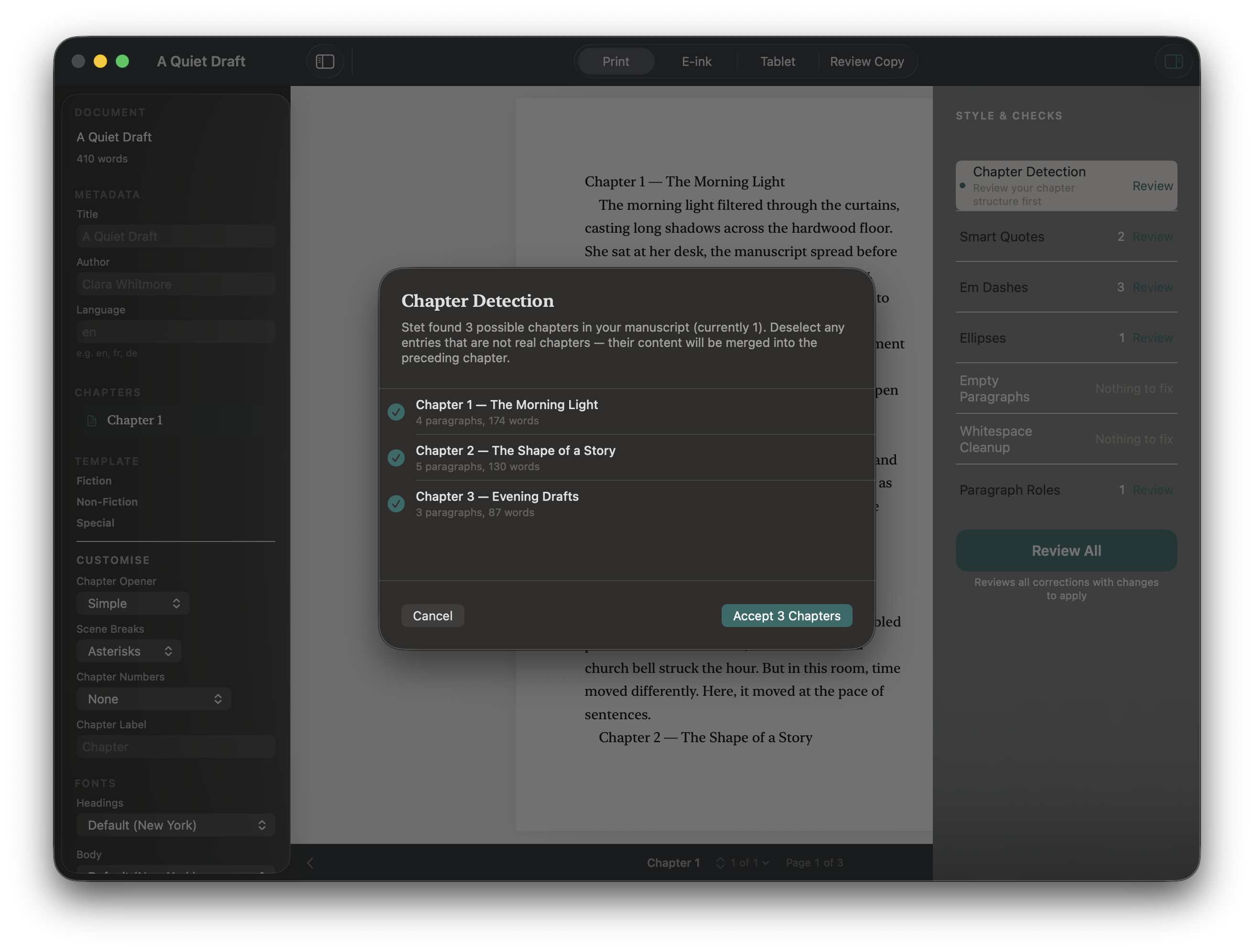
Chapter Detection appears first in the corrections panel because it affects everything else. Previews, navigation, and all other corrections work best when your chapter structure is confirmed.
Reviews how Stet has divided your manuscript into chapters and lets you adjust the structure before finalising.
The wizard shows each detected heading with three options:
- Chapter: treat this as a regular chapter
- Part: treat this as a part divider (renders as a half-title page)
- Merge: fold this heading's content into the previous chapter
This correction can be reopened at any time. Click Review next to Chapter Detection even after it has been applied. Re-applying registers a new undo action, so you can always go back.
When to use this:
- Stet detected headings that aren't actually chapter breaks
- You want to promote some chapters to Parts
- Your chapter structure looks wrong after import
Auto-fixable corrections
These corrections can be applied automatically. Stet shows you a diff of each change so you can verify before applying.
Smart Quotes
ID: correction.smart-quotes
Replaces straight quotation marks with curly (typographer's) quotes:
"text"→"text"'text'→'text'
Stet uses context to determine whether an opening or closing quote is needed. The diff view lets you verify each instance. Occasionally the direction can be ambiguous near em dashes or nested quotes.
Em Dashes
ID: correction.em-dash
Replaces double hyphens and spaced hyphens with em dashes:
word--word→word—wordword - word→word—word
Ellipses
ID: correction.ellipsis
Replaces three consecutive periods with the typographic ellipsis character:
...→…
This ensures consistent spacing and correct rendering across all export formats.
Empty Paragraphs
ID: correction.empty-paragraphs
Removes blank paragraphs used for visual spacing. In a formatted book, spacing between paragraphs is handled by the template. Blank paragraphs cause inconsistent spacing and should be removed.
The diff view shows the surrounding context and marks the paragraph to be removed with a pilcrow (¶) so you can see exactly what will be deleted.
Whitespace Cleanup
Stet handles this automatically when you import. Extra spaces, trailing whitespace, and manual indentation are cleaned up so your book's spacing is controlled entirely by the template. Nothing to review.
Paragraph Indentation
Stet handles this automatically when you import. The first paragraph of each chapter is set flush left (no indent), which is standard for published books. Indentation starts from the second paragraph onward. Nothing to review.
Reviewing all corrections at once
Click Review All at the bottom of the Style & Checks panel to review every auto-fixable correction in a single session. Stet walks through each correction in sequence, applying your accepted changes from each before moving to the next.
The combined summary at the end shows how many changes were applied across all corrections.