What Stet checks for
Stet runs a battery of checks against your manuscript every time you import it, edit a chapter, or change a setting. The checks live in the Style & Checks panel on the right side of the window. They're read-only — they never change your manuscript on their own. They flag things that may need attention, and many of them can be fixed automatically with one click.
Each finding falls into one of four buckets.
Typography
The small details readers don't notice when they're right and can't unsee when they're wrong. Stet flags straight quotes that should be curly, hyphens that should be em dashes, three periods that should be ellipses, and the kind of mixed punctuation that betrays a manuscript copied between editors.
Where there's an automatic fix, you'll see a count next to the check (e.g. Em Dashes: 21). Click Review to step through every change — accept individually, accept all, or skip — before anything is written.
Structure
Front matter in the wrong order. A copyright page that's missing. An ISBN that doesn't validate. A chapter with no title. Two chapters with the same title. A 200-page novel detected as a single chapter because the headings weren't styled properly in Word.
These are the issues that quietly mark a book as self-published. Stet finds them before your distributor does.
Layout
Things that only become visible once your book is paginated: chapters that fall below KDP's minimum page count, gutters that are too narrow for the bound page count, runs of dialogue without a single scene break, and lines that will produce widows or orphans at your chosen trim size.
The widow and orphan check looks at the actual rendered pages, not the raw text — so what you see in the preview is what you'll get from the printer.
Metadata and accessibility
Images without alt text (required by EPUB 3 for accessibility, and by some retailers for store ingestion). Inconsistent scene break ornaments. Body fonts that don't pair well with your chosen template.
These rarely block an export, but they catch a lot of small embarrassments.
Working with checks
A count means there's a fix available. Click Review to see each change one at a time, with a side-by-side diff. Press ⌘Z to undo at any point.
"Nothing to fix" means clean. No action needed.
Dismiss any check by clicking the × next to it. Dismissed checks can be restored from the panel's overflow menu — they're hidden, not deleted.
Re-run automatically. Most checks re-run instantly when you edit a chapter or change a setting; a few that depend on rendered pages (like widow detection) refresh after the preview catches up.
The Book Quality Inspector
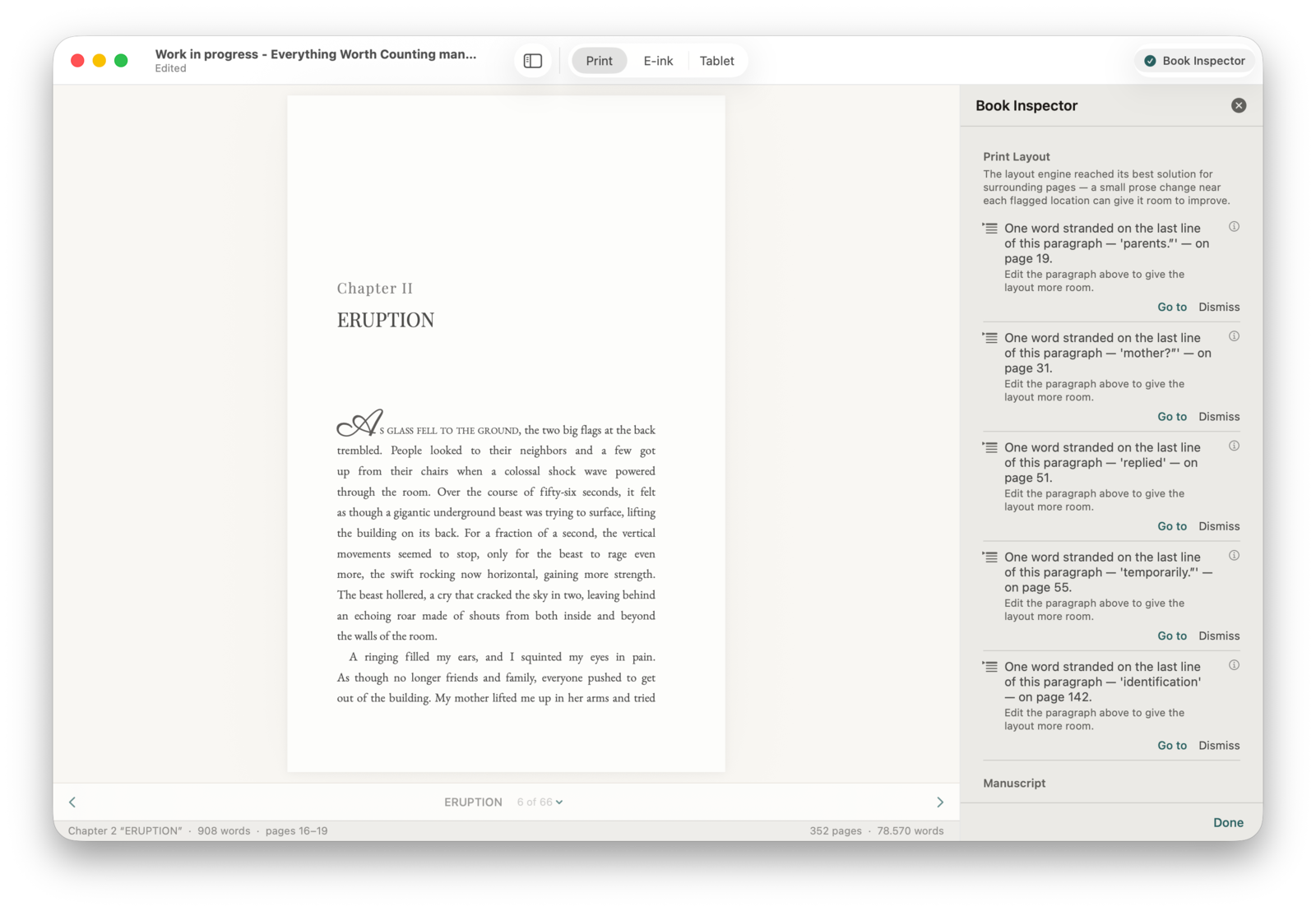
All of the above lives in the Book Quality Inspector — a single panel that consolidates the manuscript checks (front matter, ISBN, scene breaks, etc.) alongside the layout-level issues only visible after pagination: widows, orphans, hyphen ladders, drop-cap collisions, runs of consecutive hyphenated lines, runts at the bottom of the page. Open it from the toolbar at any time.
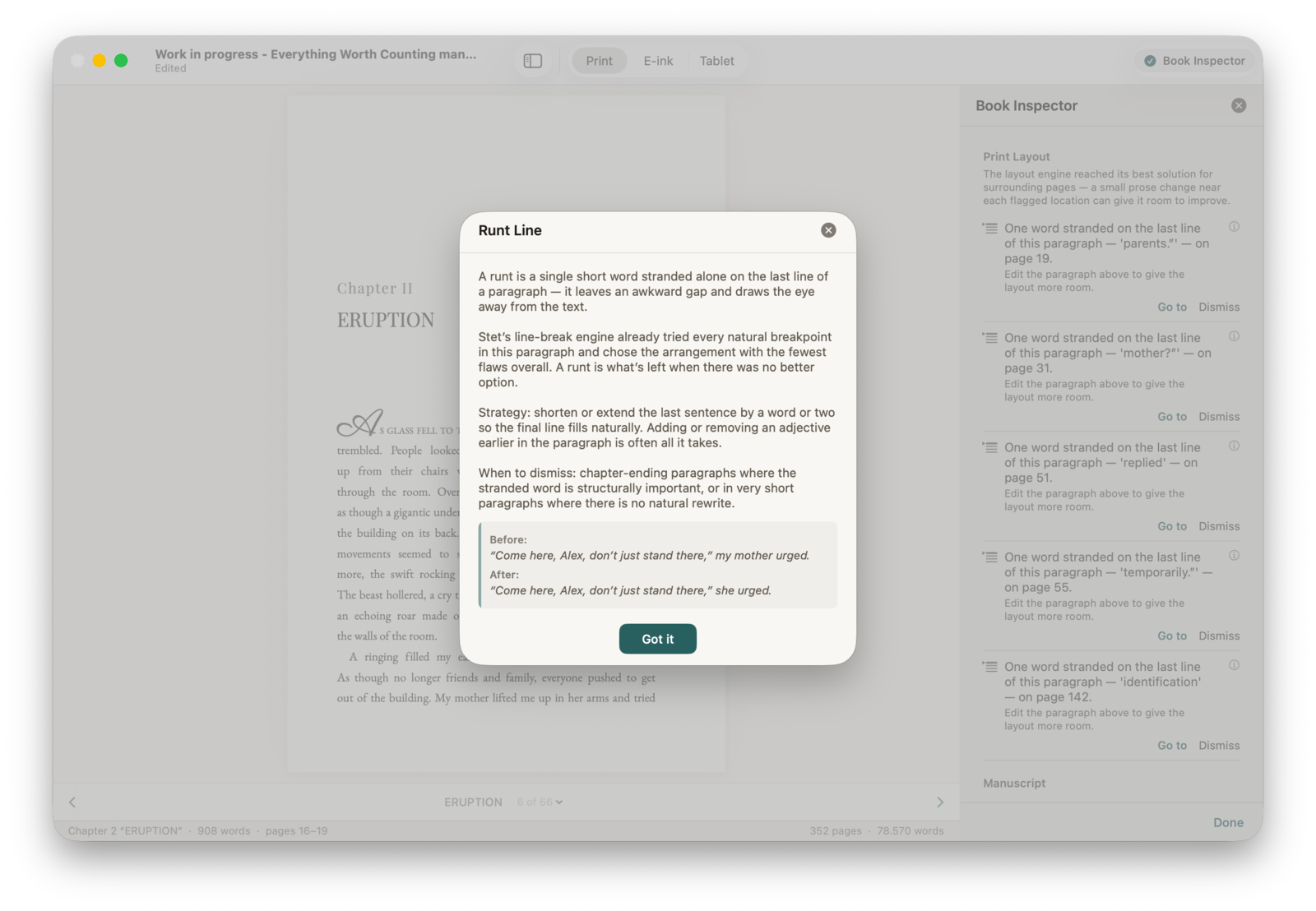
Every finding has a help sheet that explains what the issue is, why it matters, and the cleanest way to fix it — including a worked before/after example.
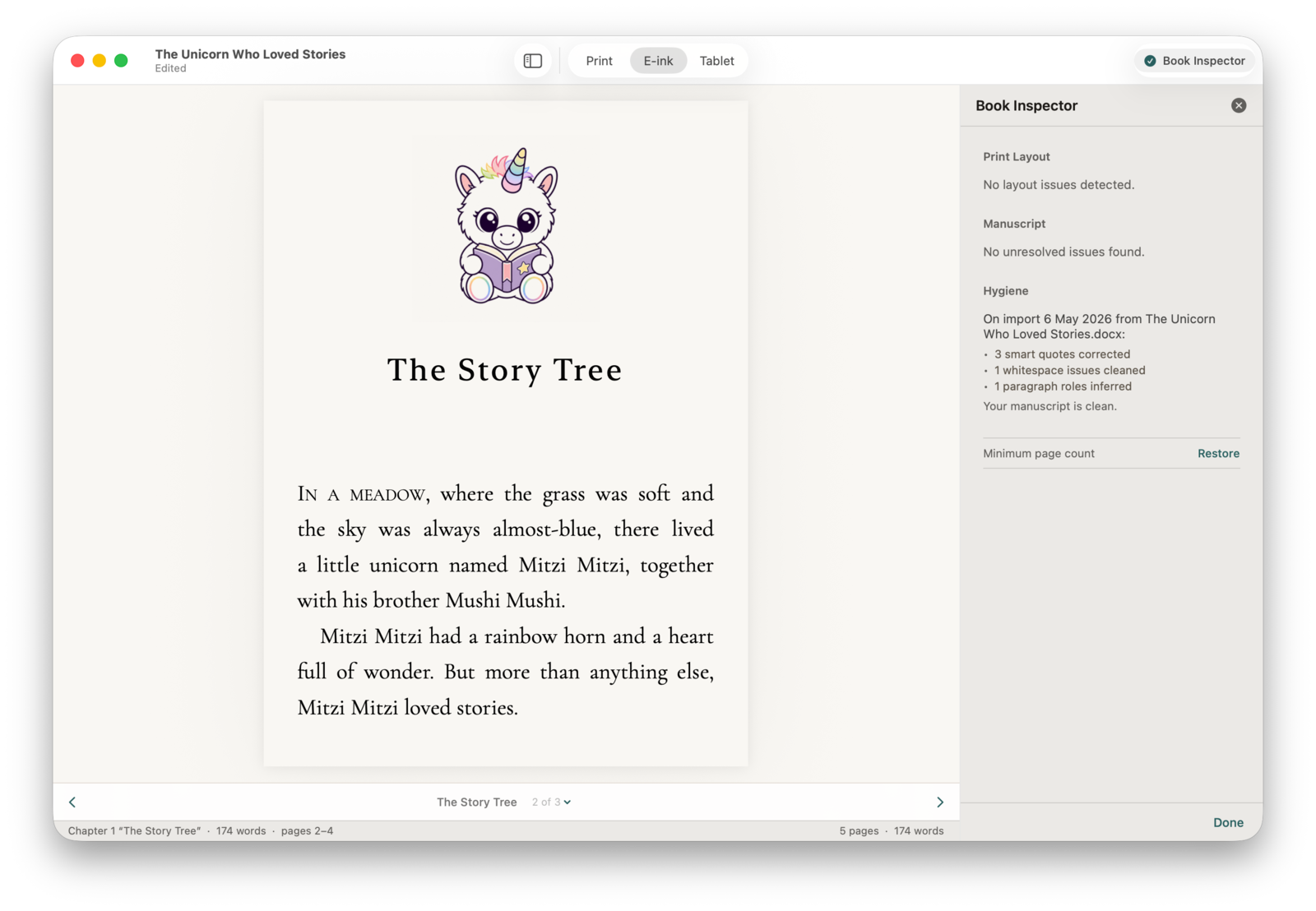
If everything is clean, the Inspector tells you so — manuscript, layout, and import hygiene all green.