Publish your book with Stet
Start with a Word manuscript. Stet imports it, finds your chapters, checks the structure, and prepares publish-ready files on your computer. The whole process takes about ten minutes.
The short version:
- Prep your
.docx. Apply Word's Heading 1 style to every chapter title. - Import. Stet detects chapters, front matter, back matter, and metadata automatically.
- Confirm the structure. Review what Stet found. Anything uncertain is flagged for a second look.
- Review the checks, preview, export. Done.
Prep your manuscript
You'll save yourself the most time here. The single most important step is below. The rest are nice-to-haves.
Do this: apply Heading 1 to every chapter title
In Word, click each chapter title and apply the Heading 1 style from the Styles panel on the Home tab. Stet reads heading styles from your document, so this is how it knows where one chapter ends and the next begins.
If your "headings" are just bold text or a larger font size, Stet still recognizes typed labels such as Chapter One, and a book-wide pattern of short bold, centered or all-caps lines after page breaks. A single styled line on its own doesn't start a chapter. Heading 1 is by far the most reliable.
Helpful: use a recognizable scene break
Mark scene breaks in your .docx with one of these patterns on a line by itself: ***, * * *, ---, - - -, or #. Stet replaces them with whatever ornament the template prescribes (and you can override the choice). Image-based dividers and blank lines aren't recognized.
Helpful: name your front and back matter
Stet auto-classifies sections by title. Calling your dedication page "Dedication" rather than something idiosyncratic will save a manual classification step. The same goes for Copyright, Foreword, About the Author, Acknowledgements, and similar standard sections.
Avoid
- Decorative chapter headings. ~ Chapter Three ~ confuses chapter-number detection. Use a clean title and let the template add the decoration.
- Manual first-paragraph indentation. Stet sets indentation based on the template. Manual spacing in Word will fight it.
- Mixed heading levels for chapters. Use Heading 1 consistently. Heading 2 is for sub-sections within a chapter.
- Embedded covers. Stet doesn't import or export covers. They're handled separately by your distributor's tooling.
For deeper prep guidance, including how front matter, back matter, and Word paragraph styles map to roles in Stet, see Preparing Your Manuscript.
Step 1: Import
Open Stet. On the welcome screen, drag your .docx onto the window or click New Book and choose your file.
Stet reads your manuscript and builds a structured book project: chapters, front matter, and back matter are detected automatically, and bold, italic, and footnotes are preserved. A few corrections are applied silently as part of import:
- Stray whitespace and double spaces are cleaned up.
- First-paragraph indentation rules are set per the template.
- Smart quotes, em dashes, and ellipses are applied based on your book's Writing Conventions: dash style (em-tight, en-spaced, em-spaced, etc.), ellipsis style (single character or spaced), and double-space normalization. You can change these from Book Details at any time and Stet will reapply.
Your original file is never modified. Stet works from a copy stored inside your
.stetproject file. You can re-import any time.
Step 2: Confirm the structure
The first time you open a manuscript, Stet walks you through a short two-step import flow:
- Your manuscript is in. Stet has detected your chapter structure. Click Review Structure to confirm it looks right, or Skip for now to move on.
- Import complete. Choose whether to review Stet's notes now in the right side panel, or head straight to Preview.
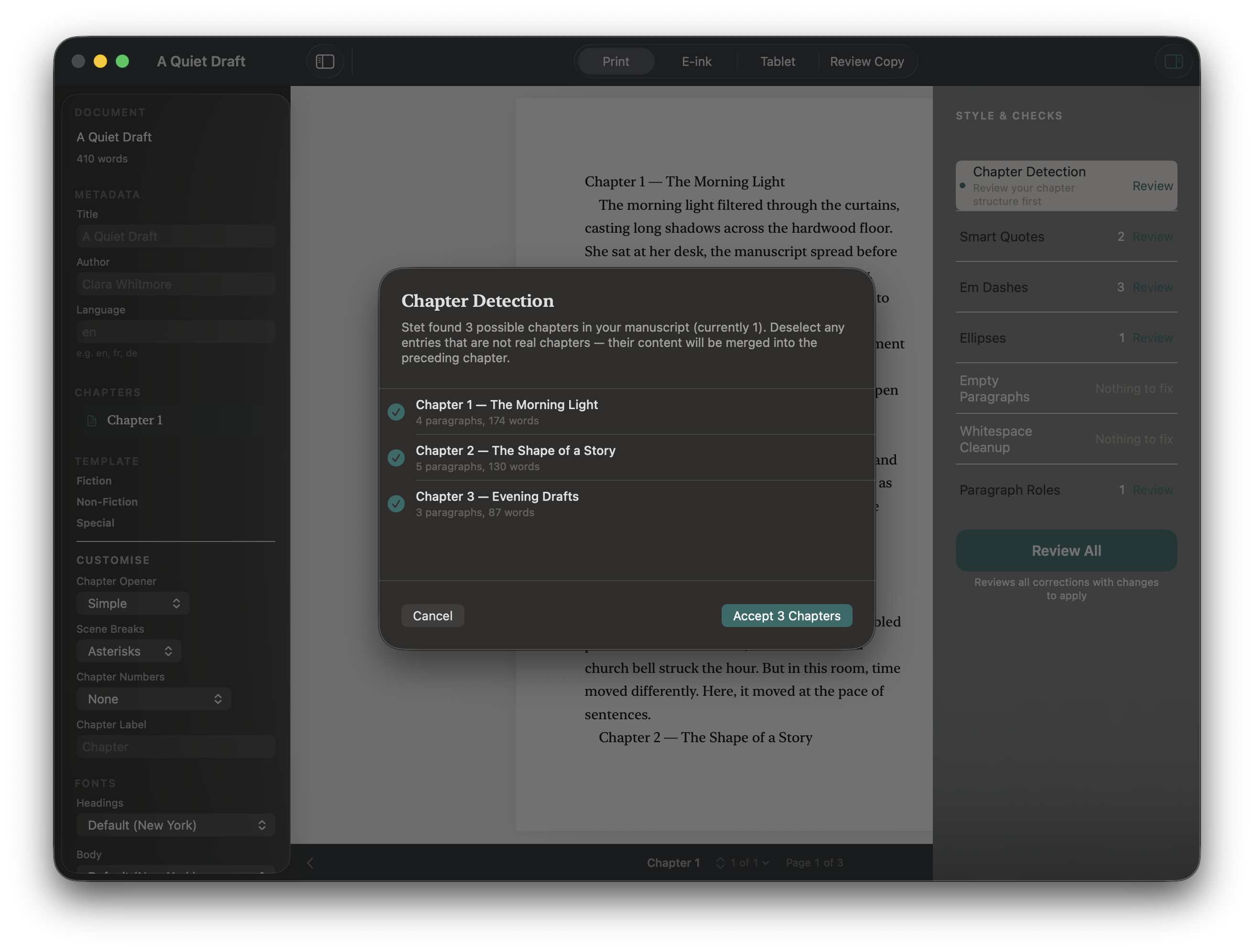
If your manuscript imported cleanly (chapters detected, nothing to flag), Stet says “Looks clean. Ready to preview.” and takes you straight to the book.
If Stet finds content before your first chapter that it couldn't classify automatically (a title page, dedication, etc.), it'll ask "What is this?" for each item before opening the book. Pick the type that fits, or choose Include in first chapter if you're unsure. Anything uncertain is flagged for review, and you can reclassify it later by right-clicking in the sidebar.
Step 3: Review the checks
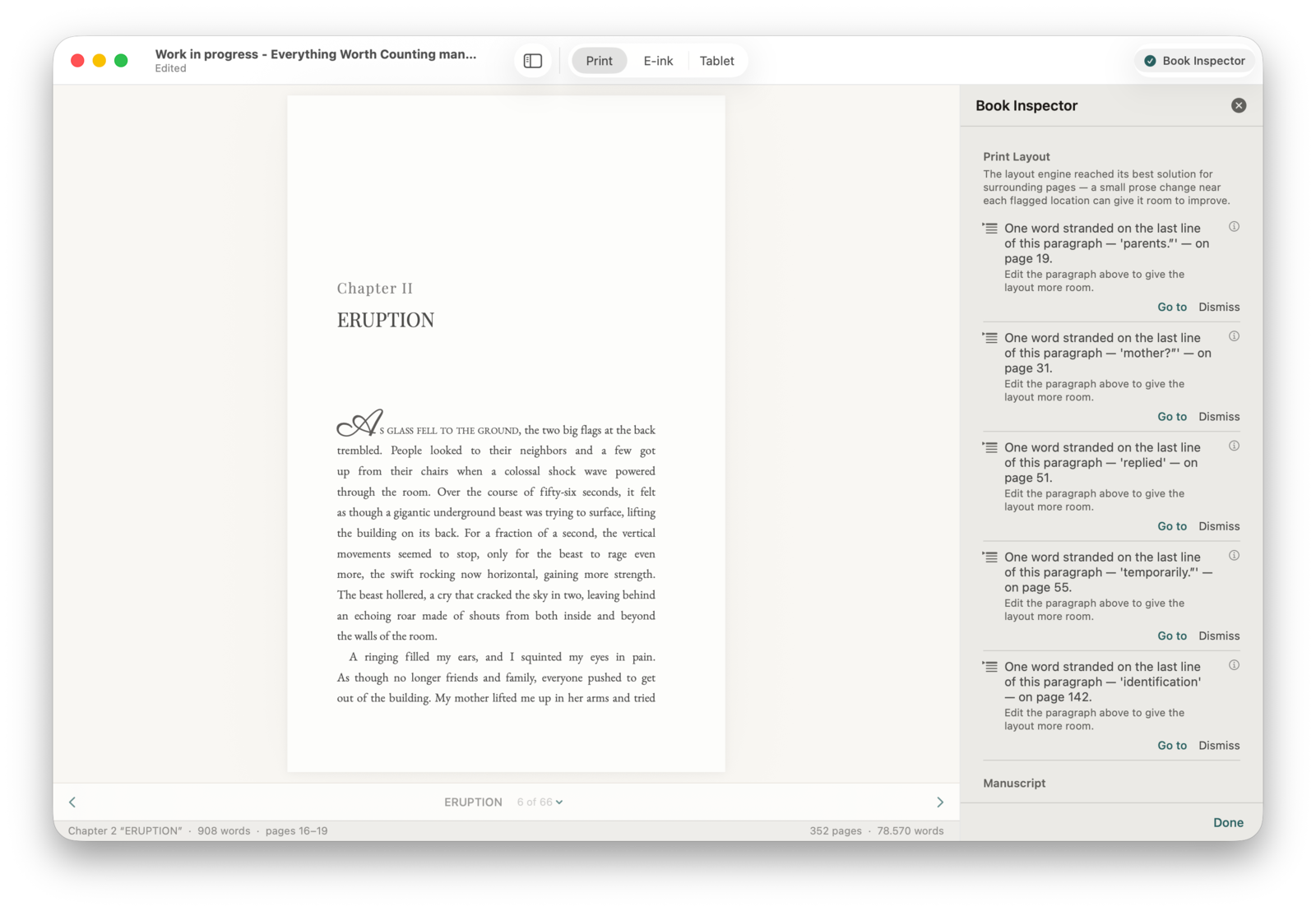
Open the checks panel from the toolbar. The right side panel is the one place Stet gathers everything worth a look, grouped into sections:
- Quick Actions: one-tap fixes for missing essentials, like Add a copyright page or an About the Author section.
- Manuscript: structural and editorial notes on short, long, or orphaned chapters, a missing copyright page, ISBN format, inconsistent scene breaks, and long unbroken passages.
- Print Layout: what only shows up once the book is paginated (widows, orphans, hyphen ladders, drop-cap collisions, runts). Generate a proof preview and Stet analyzes the real pages.
- Hygiene: a log of the corrections Stet already applied on import.
Findings are sorted by severity: Essential issues to fix before export come first, then Recommended, Standard, and Advisory. Use Fix to apply a change, Fix All Typography to apply a batch, or Review to step through a diff first. Click Dismiss on anything intentional.
Every change is undoable with ⌘Z.
Step 4: Choose a template and trim size
In the left sidebar:
Template controls the visual style of your book. Templates are grouped by genre. Click a group (Fiction, Non-Fiction, Memoir & Essay, Poetry, Special) to expand it. Click any template to apply it. The preview updates immediately. Hover for a one-line description.
Style (below the template picker) lets you customize the selected template: scene break, chapter number style, chapter opener layout, page numbering, and more. Tweak anything that doesn't suit your book. A small dot appears next to the template name when you've made changes, and Reset to template defaults restores the original settings.
Trim Size is the physical size of your printed book. Stet ships with 19 trim sizes audited against KDP's current supported list. Pick one that matches your distributor's requirements.
Fonts: click the font name next to Chapter Headings or Body Text to swap typefaces. Stet ships with a curated set of open-license fonts that are safe to embed. You can also import your own.
If you import a font, only use one you are licensed to embed in published files.
Right-click any chapter or section in the sidebar to reclassify it, change its type, or remove it from the book.
Step 5: Preview
The center panel shows a live preview. Use the tabs at the top to switch between three modes:
- Print: exact replica of your print interior, with running headers and page numbers
- E-ink: how your ebook looks on Kindle Paperwhite and Kobo
- Tablet: how your ebook looks on iPad and Fire
Navigate with the ‹ › arrows, or click the chapter list to jump. The preview updates immediately when you change anything.
Step 6: Export
When you're happy, open the export sheet from the File menu and pick what you need. Formats are grouped into two sets:
- Publish files: EPUB 3, EPUB 3 (Kindle), EPUB 2, and Print PDF, for uploading to KDP, IngramSpark, or Draft2Digital.
- Document copies: RTF Document and Word Document, for editor review or backup. These are not for retailer upload. After editing in Word, use File → Reimport Manuscript to merge changes back, keeping your template and settings.
Tick everything you want and export in one pass. Finder opens automatically when an export finishes.
Tips
Chapters not detected correctly? Heading styles probably weren't applied in Word. Apply Heading 1 to your chapter titles and re-import, or use the Chapter Detection correction in Stet to mark headings manually after import.
Front matter out of order? The standard order is Half-title, Title page, Copyright, Dedication, Epigraph, Table of Contents, Foreword, Preface. Stet flags deviations as a warning, not an error.
Kindle is ignoring my custom font. Expected. Kindle uses its own font rendering and overrides custom fonts in all ebooks, regardless of the tool that produced them. Apple Books and Kobo will honor your choice.
Something looks off in print preview. Check that the trim size matches your intended print size, and try switching templates. Some are better suited to certain genres.
A section is the wrong type. Right-click it in the sidebar and choose Change Type.
Keyboard shortcuts
| Action | Shortcut |
|---|---|
| Previous chapter | ⌘[ |
| Next chapter | ⌘] |
| Find | ⌘F |
| Find and Replace | ⌘H |
| Next match | ⌘G |
| Double-click page | Edit chapter |
| ⌘Return (in editor) | Save chapter |
| Undo | ⌘Z |
Export lives in the File menu. It opens an export sheet where you pick formats and export in one pass.
More reading
- Preparing Your Manuscript: the Word styles and patterns Stet recognizes, and the Stet Word template.
- Templates & Fonts: choosing and customizing the look of your book.
- Checks: what Stet looks for and why.
- FAQ.